AWS CLI Security Commands
I've used these commands to catch everything from wide-open S3 buckets to overprivileged IAM roles. Here's your practical guide to AWS security auditing that comes in handy.
I learned most of these commands through incident calls and failed security audits.
These commands find security issues before attackers do. I drew them from incidents, audit findings, and mistakes I have seen and made over the years.
IAM AUDIT COMMANDS
Find Users Who’ve Never Logged In
aws iam list-users --query 'Users[?PasswordLastUsed==null].UserName'
I once found 47 IAM users created but never used. Each one was a potential attack vector.
Look for any user created more than 30 days ago who’s never logged in. Either they don’t need access (delete them) or they need onboarding (train them).
Check Password Policy Strength
aws iam get-account-password-policy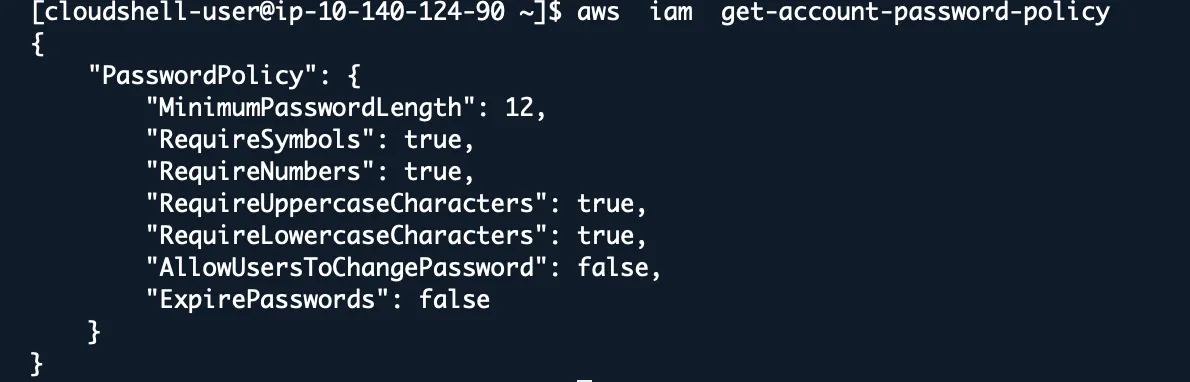
During a security review, I found a company’s password policy allowed 6-character passwords with no special characters. Their reasoning: “users complained about complex passwords,” but they complained a lot more after the breach.
Red flags:
- MinimumPasswordLength < 12
- RequireNumbers: false
- RequireSymbols: false
- MaxPasswordAge > 90 days
Find Root Account Usage
aws cloudtrail lookup-events --lookup-attributes AttributeKey=Username,AttributeValue=root --start-time 2024-01-01
The root account should never handle daily operations. If you see recent root activity, investigate immediately.
Action items:
- Enable root account MFA if not already done
- Create IAM users for all human access
- Lock away root credentials
List All Access Keys and Their Age
aws iam list-access-keys --user-name USERNAME
aws iam get-access-key-last-used --access-key-id AKIAXXXXXXXXXXXXXXXX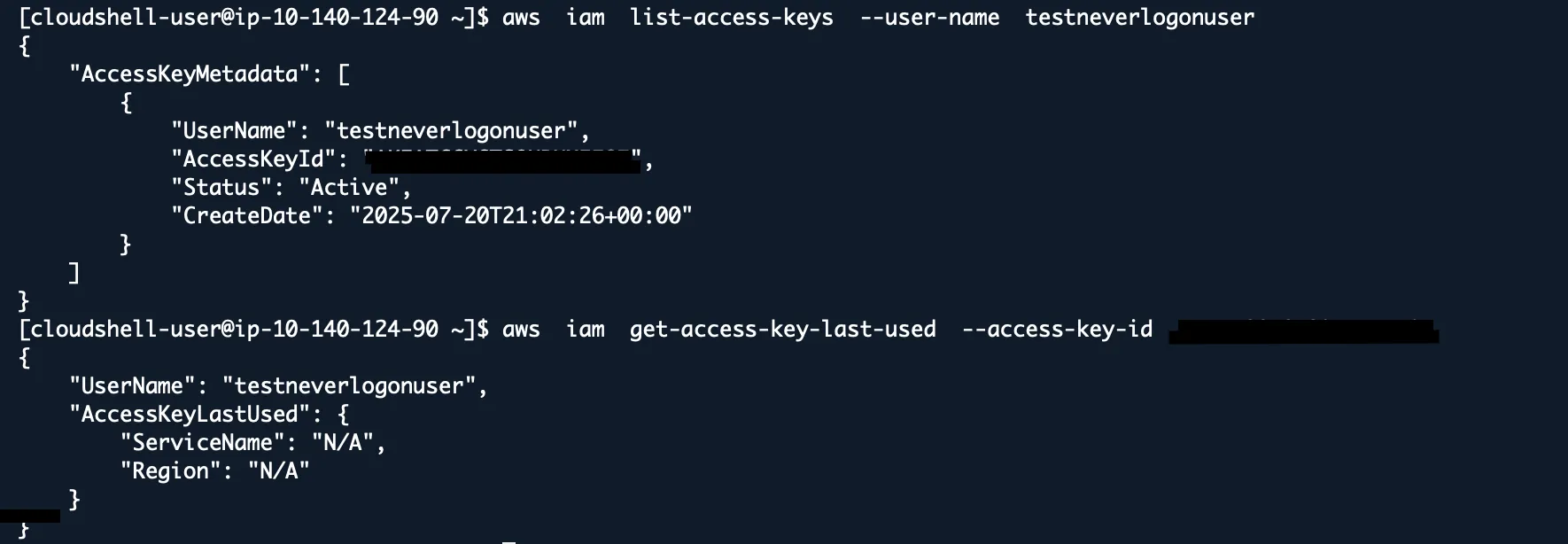
Found access keys 847 days old and still active. The employee had left two years earlier. Those keys had admin privileges.
Rotate any access key older than 90 days. Delete keys for former employees immediately.
Find Overprivileged Users
aws iam list-attached-user-policies --user-name USERNAME
aws iam list-user-policies --user-name USERNAME
aws iam get-policy --policy-arn arn:aws:iam::aws:policy/AdministratorAccess
I’ve seen junior developers with AdministratorAccess because “it was easier than figuring out the right permissions.”
Look for users with AdminAccess, PowerUserAccess, or wildcard permissions (*) who don’t need them.
S3 SECURITY COMMANDS
Find Publicly Accessible Buckets
for bucket in $(aws s3api list-buckets --query 'Buckets[].Name' --output text); do
    aws s3api get-bucket-acl --bucket "$bucket" 2>/dev/null | grep -qE "AllUsers|AuthenticatedUsers" && echo "PUBLIC: $bucket"
done
Any bucket with “AllUsers” or “AuthenticatedUsers” in the Grantee section is exposed.
Check Bucket Encryption Status
aws s3api get-bucket-encryption --bucket BUCKET_NAME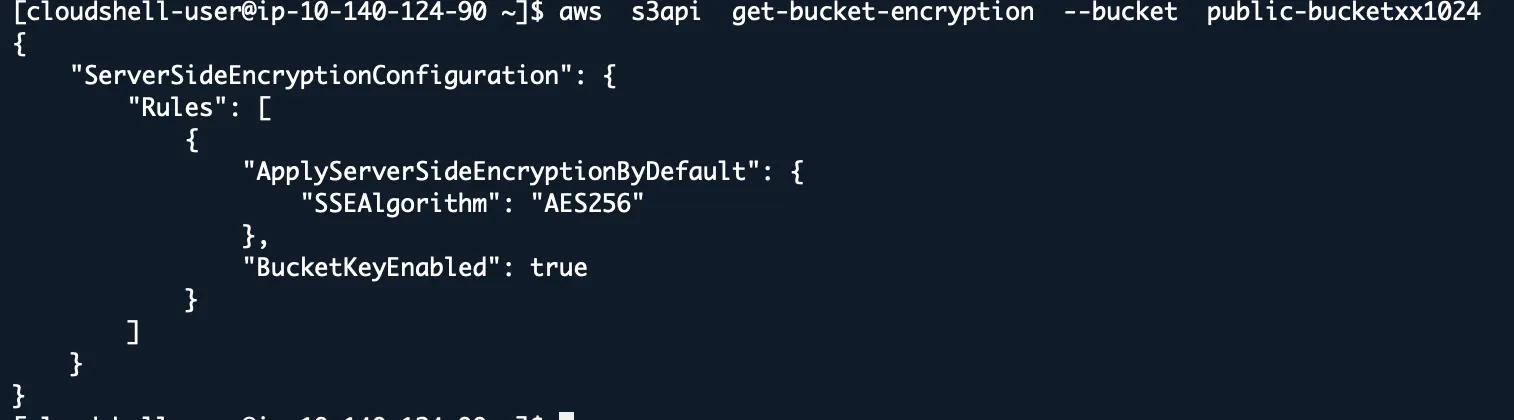
“Are your S3 buckets encrypted?” Everyone says yes, but this command shows the actual encryption status.
“ServerSideEncryptionConfigurationNotFoundError” means the bucket isn’t encrypted. Fix it now.
List All Public Objects in a Bucket
# This lists ALL objects, then checks EACH one
BUCKET="BUCKET-NAME"
aws s3api list-objects-v2 --bucket "$bucket" --query 'Contents[].Key' --output text | \
tr '\t' '\n' | \
while read -r key; do
    if [ -n "$key" ]; then
        if aws s3api get-object-acl --bucket "$bucket" --key "$key" 2>/dev/null | grep -qE "AllUsers|AuthenticatedUsers"; then
            echo "PUBLIC OBJECT FOUND: $key"
        fi
    fi
done
After fixing bucket-level permissions, check object-level permissions too. I’ve seen private buckets holding thousands of public objects.
Check Bucket Versioning and MFA Delete
aws s3api get-bucket-versioning --bucket BUCKET_NAMEThis protects against ransomware and accidental deletion. If Status isn’t “Enabled” and MfaDelete isn’t “Enabled”, review it.
EC2 SECURITY COMMANDS
Find Running Instances with Public IPs
aws ec2 describe-instances --filters "Name=instance-state-name,Values=running" --query 'Reservations[].Instances[?PublicIpAddress!=null].[InstanceId,PublicIpAddress,SecurityGroups[0].GroupId]'
Not everything needs a public IP, and every one is a potential attack surface.
For each public instance, ask: does this need internet access, or can it go behind a load balancer or NAT gateway?
Check Security Groups for Dangerous Rules
aws ec2 describe-security-groups --query 'SecurityGroups[?IpPermissions[?IpRanges[?CidrIp==`0.0.0.0/0`]]].[GroupId,GroupName,IpPermissions]'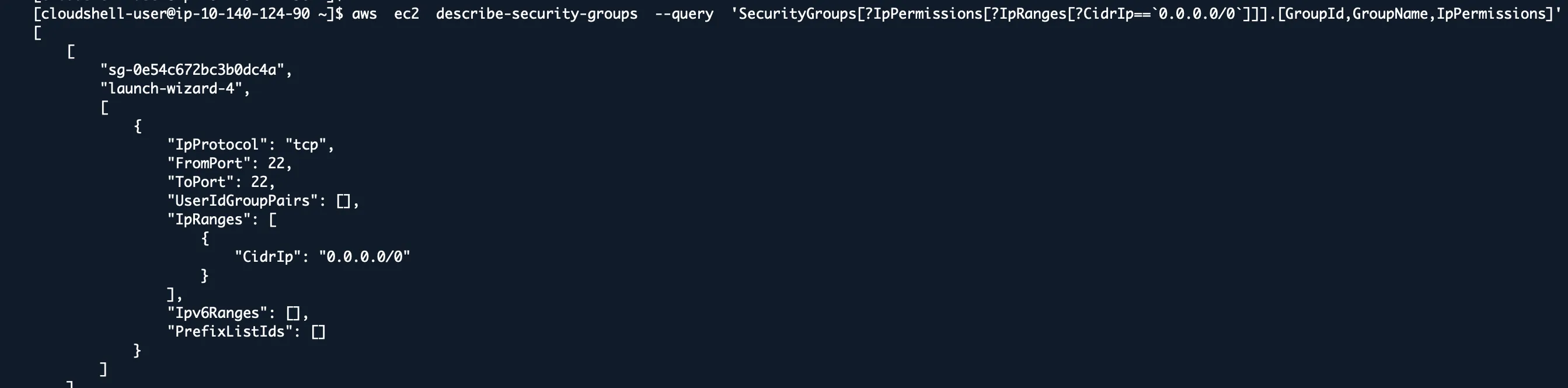
Finds security groups that allow access from anywhere.
Find Unencrypted EBS Volumes
aws ec2 describe-volumes --filters "Name=encrypted,Values=false" --query 'Volumes[].{VolumeId:VolumeId,Size:Size,State:State,Encrypted:Encrypted}'
Many compliance frameworks require encryption at rest. This shows which volumes aren’t compliant.
You can’t encrypt existing volumes directly, but you can create encrypted snapshots and restore from them.
List AMIs That Are Public
aws ec2 describe-images --owners self --query 'Images[?Public==`true`].[ImageId,Name,Public]'
I’ve seen companies accidentally make AMIs public that contained proprietary software, database credentials, and private keys.
Unless you intend to share an AMI publicly, this list should be empty.
CLOUDTRAIL AUDIT COMMANDS
Find Recent Root Account Activity
aws cloudtrail lookup-events --lookup-attributes AttributeKey=Username,AttributeValue=root --start-time $(date -d '30 days ago' '+%Y-%m-%d')
Any root account usage in the last 30 days needs investigation. Initial account setup and emergency access are the only valid reasons.
Search for Failed Login Attempts
aws cloudtrail lookup-events --lookup-attributes AttributeKey=EventName,AttributeValue=ConsoleLogin --start-time $(date -d '7 days ago' '+%Y-%m-%d') | jq '.Events[] | select(.CloudTrailEvent | contains("Failed"))'Multiple failed logins from the same IP might indicate a brute force attack. Look for patterns in timing, source IPs, and targeted usernames.
Find Privilege Escalation Attempts
aws cloudtrail lookup-events --lookup-attributes AttributeKey=EventName,AttributeValue=AttachUserPolicy --start-time $(date -d '60 days ago' '+%Y-%m-%d')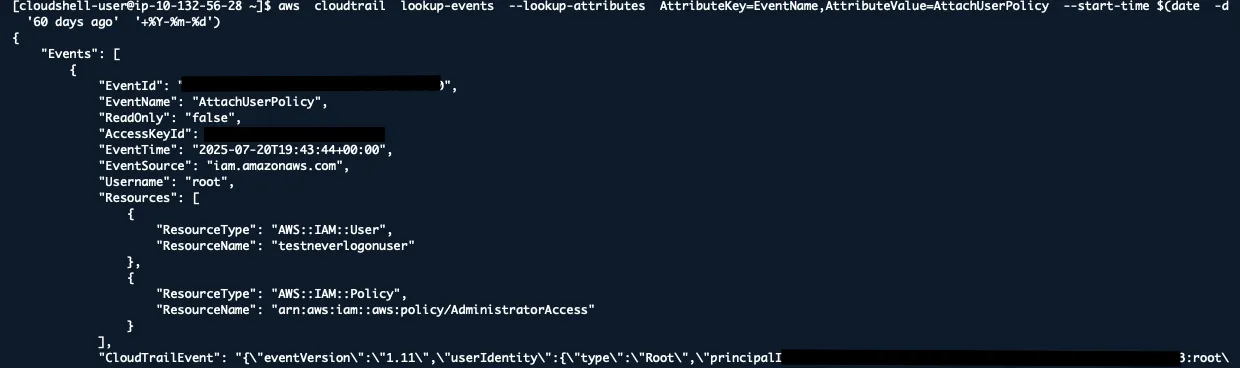
Attackers often escalate privileges by attaching policies to users or roles. Also check CreateRole, AttachRolePolicy, and PutUserPolicy events for suspicious activity.
VPC SECURITY COMMANDS
Find Default VPCs (Security Risk)
aws ec2 describe-vpcs --filters "Name=is-default,Values=true"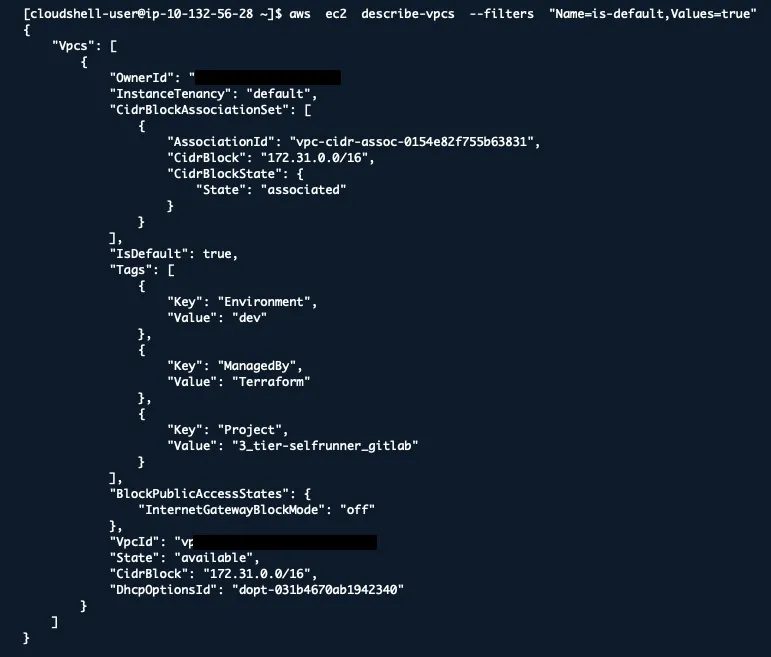
Default VPCs are convenient but often less secure, usually with permissive routing and security group rules. Create custom VPCs with proper segmentation instead.
Check VPC Flow Logs Status
aws ec2 describe-flow-logs --query 'FlowLogs[].{FlowLogId:FlowLogId,ResourceId:ResourceId,TrafficType:TrafficType,FlowLogStatus:FlowLogStatus}'Flow logs are essential for security monitoring and incident investigation. Enable them for VPCs, subnets, or network interfaces in security-sensitive environments.
List Internet Gateways and NAT Gateways
aws ec2 describe-internet-gateways
aws ec2 describe-nat-gateways
Understanding your internet connectivity helps identify potential attack paths. Does every internet gateway have a valid business justification?
RDS SECURITY COMMANDS
Find Publicly Accessible Databases
aws rds describe-db-instances --query 'DBInstances[?PubliclyAccessible==`true`].[DBInstanceIdentifier,Engine,PubliclyAccessible]'Public databases are frequent attacker targets. I’ve responded to incidents where attackers scanned for and compromised public RDS instances. Unless there’s a specific business need, databases should not be publicly accessible.
Check Database Encryption Status
aws rds describe-db-instances --query 'DBInstances[].[DBInstanceIdentifier,StorageEncrypted,KmsKeyId]'Encrypted storage is required by many security frameworks and regulations. You cannot encrypt an existing unencrypted database directly. Create an encrypted snapshot and restore from it instead.
List Database Snapshots and Their Permissions
aws rds describe-db-snapshots --snapshot-type manual
aws rds describe-db-snapshot-attributes --db-snapshot-identifier SNAPSHOT_ID
I’ve seen manual snapshots accidentally shared publicly, exposing entire databases. Check that snapshots aren’t publicly accessible unless intentionally shared.
LAMBDA SECURITY COMMANDS
Find Functions with Overly Permissive Policies
aws lambda list-functions --query 'Functions[].FunctionName' --output text | \
tr '\t' '\n' | \
while read -r function; do
    echo "Checking: $function"
    aws lambda get-policy --function-name "$function" 2>/dev/null || echo "  No resource policy"
done
Lambda functions often get more permissions than they need, especially during development. Look for wildcard permissions (*) or overly broad resource access.
Check Function Environment Variables for Secrets
aws lambda get-function-configuration --function-name FUNCTION_NAME --query 'Environment'Environment variables are visible to anyone with function read access. Put secrets in AWS Secrets Manager or Parameter Store instead.
Red flag: any environment variable containing “password”, “key”, “secret”, or “token”.
CLOUDFORMATION SECURITY COMMANDS
Find Stacks with IAM Capabilities
aws cloudformation describe-stacks --query 'Stacks[?Capabilities!=null].[StackName,Capabilities]'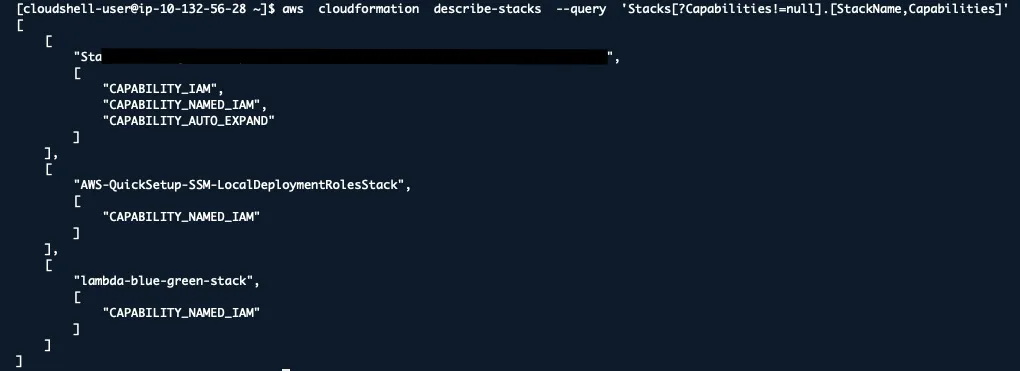
Stacks with CAPABILITY_IAM or CAPABILITY_NAMED_IAM can create IAM resources, potentially escalating privileges. Review any stack with IAM capabilities for the resources it creates.
Check Stack Drift for Security Resources
aws cloudformation detect-stack-drift --stack-name STACK_NAME
aws cloudformation describe-stack-resource-drifts --stack-name STACK_NAME
Security configurations that drift from the intended state can create vulnerabilities. Monitor security groups, IAM policies, and encryption settings for drift.
SECRETS MANAGER COMMANDS
List Secrets and Their Rotation Status
aws secretsmanager list-secrets --query 'SecretList[].[Name,RotationEnabled,LastRotatedDate]'Secrets that aren’t rotated regularly increase the risk if compromised. Enable automatic rotation for database credentials and API keys.
Find Secrets Without Resource-Based Policies
aws secretsmanager describe-secret --secret-id SECRET_NAME --query 'Policy'Secrets without resource policies rely only on IAM permissions, which might be overly broad. Add resource-based policies to limit which principals can access specific secrets.
PRACTICAL USAGE EXAMPLES
Daily Security Check
#!/bin/bash
# Quick daily security check

echo " Checking for public S3 buckets "
aws s3api list-buckets --query 'Buckets[].Name' --output text | \
xargs -I {} aws s3api get-bucket-acl --bucket {} 2>/dev/null | \
grep -B2 -A2 "AllUsers\|AuthenticatedUsers"

echo " Checking for root account usage "
aws cloudtrail lookup-events \
  --lookup-attributes AttributeKey=Username,AttributeValue=root \
  --start-time $(date -d '24 hours ago' '+%Y-%m-%d')

echo " Checking for public RDS instances "
aws rds describe-db-instances \
  --query 'DBInstances[?PubliclyAccessible==`true`].[DBInstanceIdentifier,Engine]' \
  --output table

echo " Checking for wide-open security groups "
aws ec2 describe-security-groups \
  --query 'SecurityGroups[?IpPermissions[?IpRanges[?CidrIp==`0.0.0.0/0`]]].[GroupId,GroupName]' \
  --output table
Post-Incident Investigation Commands
# After a security incident, run these to understand the scope
# Set variables for easier investigation
COMPROMISED_USER="username-here"
ATTACKER_IP="1.2.3.4"
INCIDENT_DATE="2024-01-01"

# 1. Check all activities by compromised user
aws cloudtrail lookup-events \
  --lookup-attributes AttributeKey=Username,AttributeValue=$COMPROMISED_USER \
  --start-time $INCIDENT_DATE \
  --query 'Events[].{Time:EventTime,Event:EventName,IP:SourceIPAddress,Source:EventSource}' \
  --output table

# 2. Track attacker IP activities
aws cloudtrail lookup-events \
  --lookup-attributes AttributeKey=SourceIPAddress,AttributeValue=$ATTACKER_IP \
  --start-time $INCIDENT_DATE \
  --query 'Events[].{Time:EventTime,User:Username,Event:EventName,Resources:Resources[0].ResourceName}' \
  --output table

# 3. Check for privilege escalation attempts
for event in CreateUser AttachUserPolicy PutUserPolicy CreateAccessKey CreateLoginProfile UpdateLoginProfile; do
  echo "Checking for: $event"
  aws cloudtrail lookup-events \
    --lookup-attributes AttributeKey=EventName,AttributeValue=$event \
    --start-time $INCIDENT_DATE \
    --query 'Events[].{Time:EventTime,User:Username,IP:SourceIPAddress}' \
    --output table
done

# 4. Check for persistence mechanisms
aws cloudtrail lookup-events \
  --lookup-attributes AttributeKey=EventName,AttributeValue=CreateRole \
  --start-time $INCIDENT_DATE \
  --output table

# 5. Data exfiltration indicators
aws cloudtrail lookup-events \
  --lookup-attributes AttributeKey=EventName,AttributeValue=GetObject \
  --start-time $INCIDENT_DATE \
  --max-items 50 \
  --query 'Events[?contains(EventSource, `s3`)].[EventTime,Username,Resources[0].ResourceName]' \
  --output table
EMERGENCY RESPONSE COMMANDS
Immediately Disable a Compromised User
# Set username
USER="compromised-user"

# 1. Block all access immediately
aws iam put-user-policy --user-name $USER --policy-name "DenyAll" \
  --policy-document '{"Version":"2012-10-17","Statement":[{"Effect":"Deny","Action":"*","Resource":"*"}]}'

# 2. Disable all access keys
aws iam list-access-keys --user-name $USER --query 'AccessKeyMetadata[].AccessKeyId' --output text | \
xargs -I {} aws iam update-access-key --user-name $USER --access-key-id {} --status Inactive

# 3. Remove console access
aws iam delete-login-profile --user-name $USER 2>/dev/null
Find All Resources Created by a Compromised User
USER="compromised-user"

# See what actions they performed
aws cloudtrail lookup-events \
  --lookup-attributes AttributeKey=Username,AttributeValue=$USER \
  --start-time $(date -d '30 days ago' '+%Y-%m-%d') \
  --query 'Events[].EventName' --output text | sort | uniq -c

USER="compromised-user"
aws cloudtrail lookup-events \
  --lookup-attributes AttributeKey=Username,AttributeValue=$USER \
  --start-time $(date -d '7 days ago' '+%Y-%m-%d') \
  --query 'Events[?contains(EventName, `Create`) || contains(EventName, `Put`) || contains(EventName, `Run`)].[EventTime,EventName,Resources[0].ResourceName]' \
  --output table
Making These Commands Work for You
Automate the routine checks with daily or weekly scripts.
Document your baselines. Know what “normal” looks like in your environment. Sudden changes often signal problems.
Combine with other tools: jq for JSON, grep for filtering, and your favorite scripting language.
Keep credentials secure. Never put AWS credentials in scripts; use IAM roles, AWS SSO, or temporary credentials.
Test in non-production first. Some of these commands return large amounts of data.
Watch Out For These Gotchas
Rate limiting hits when checking many resources. AWS APIs have limits, so add delays between calls.
Permissions matter. Some commands need read access to multiple services.
Regional resources can trip you up. Use the --region flag or loop through regions for full coverage.
Eventual consistency means security changes might not show up immediately.
SUM’ IT UP ALL TO…
These commands represent years of security incidents, audit findings, and lessons learned. They find problems in real environments, not on paper.
Start with the basics: public resources, overprivileged users, unencrypted data. Build from there based on your risk profile.
Security is continuous, not a one-time check. Make these commands part of your regular routine.
The goal is to know what you’re protecting, how, and when something changes that needs investigating.
Keep these commands handy for your future self and your incident response team.